
The host dashboard
New in this release, and part of Remote, which is still under development. Expect it to change.
The host dashboard is a web page a computer serves to itself, for looking after it as a host
from a browser: how it stands, the agents installed on it, Git and GitHub, the commands that set
it up, a terminal for what asks a question, signing it in to a Yardsort server and letting your
devices in. It is what you would otherwise do over SSH, a command at a time, after
installing yardsort-host.
It is not another Yardsort. There are no workspaces, agents' terminals or conversations in it, and it starts no agent: that is the phone's and the desktop's. It does not need Remote either, so a server that is not signed in to anything yet serves it all the same, and on a computer with no screen you can sign it in from the page.
- On a computer with no screen,
yardsort-host serveserves it unless you turn it off. - In the app, it is off until you turn it on under Settings → Remote → Host dashboard.
Who can reach it
It listens on that computer alone, on 127.0.0.1, port 28680. Nothing on the network can
connect to it. From another computer you reach it one of two ways: a port forwarded over SSH, or
a tunnel you turn on.
A browser must sign in, with a one-time link that only that computer hands out, and only to a person: at a terminal of your own there, or in the app's window. There is no password to guess. A link is good once, for ten minutes; the browser then stays signed in for thirty days.
Whoever signs in has a shell on that computer, as the user the host runs as. That is what it is for. Treat a sign-in link as you would treat an SSH login there.
On a computer with no screen, that includes Remote: whoever signs in can sign it in to a Yardsort server, sign it out, and pair a device with it, as you can at a terminal there. Anyone who can run commands as that user could do all of that anyway.
It approves no memory note, turns no sync on, and neither exports nor deletes your
account. Those stay at a terminal of your own, or in the app, so that nothing an agent could reach
can do them. A command you run from the dashboard is refused them too, and refused pairing:
yardsort-host pair typed into Commands or into the page's Terminal does not pair a
device. Only the page's own buttons do, in a browser you signed in.
Opening it on a computer with no screen
Log in to that computer over SSH, as the user that runs the host, and ask for a way in:
yardsort-host dashboard
Dashboard: http://127.0.0.1:28680
Tunnel: off

Sign a browser in, within 10 minutes, by opening:

  http://127.0.0.1:28680/#code=7K2M-9QXD-4TRA-B6WN

Or open the address alone and type the code: 7K2M-9QXD-4TRA-B6WN

From another computer, without a tunnel, forward the port first:
  ssh -L 28680:127.0.0.1:28680 <this computer>
That address is the server's own. To open it in the browser in front of you, forward the port from your computer, in another terminal, and then open the link there:
ssh -L 28680:127.0.0.1:28680 build-box
yardsort-host dashboard is refused from any terminal Yardsort started, from anything an agent
runs, and from a script, as pair is, and
like pair it needs Linux. yardsort-host status says where the dashboard is and how many
browsers are signed in, and needs no terminal.
Opening it from the app
Open Settings, then Remote, and under Host dashboard tick Serve the host dashboard. The section then says where it is served.
- Open the dashboard opens it in this computer's browser, signed in.
- Copy a sign-in link puts a one-time link on the clipboard, for a browser elsewhere. It is this computer's own address unless the tunnel is up, so from another computer forward the port first, as above.
- Sign every browser out ends every session at once.
Unticking the box stops serving it, and it stays off the next time Yardsort starts.
What is in it
Overview
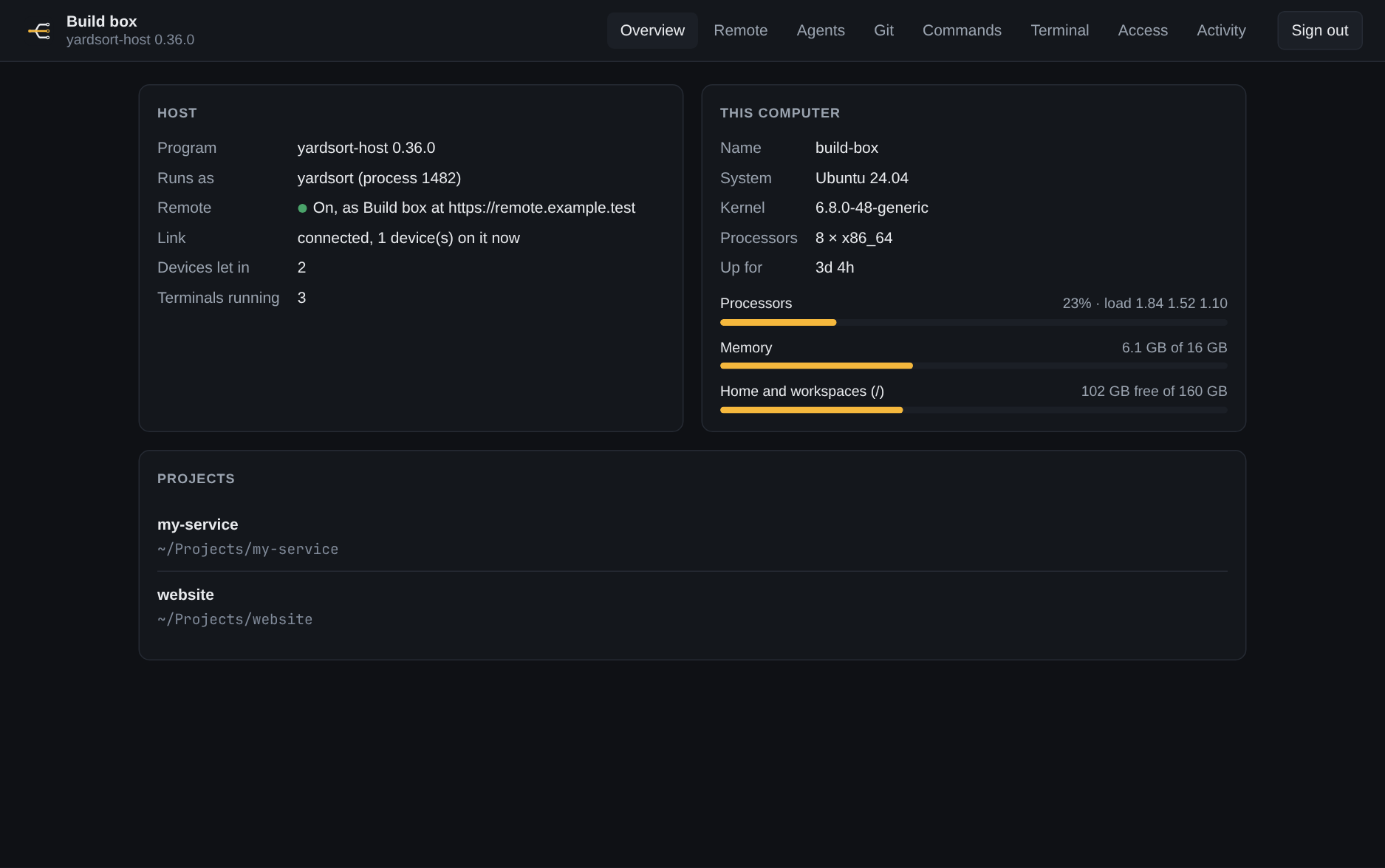
How the host stands: the program and its version, the user it runs as, whether Remote is on and its link to the server, how many devices are let in, and how many terminals are running. Beside it, the computer: its system, how busy its processors are, its memory, and how full the disks under your home and your workspaces are. Below, the projects there.
Remote
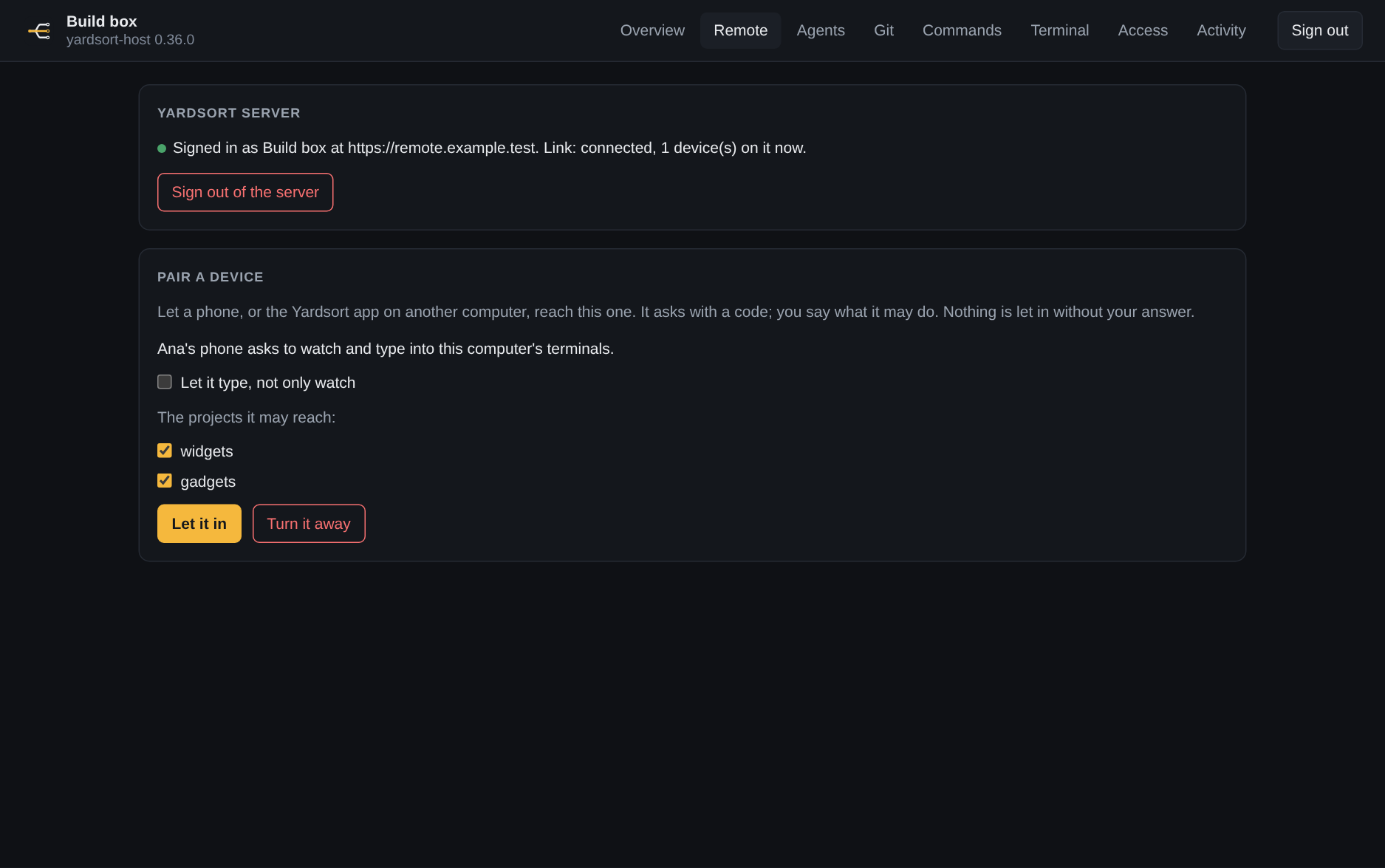
On a computer with no screen, what yardsort-host sign-in, sign-out and pair do at a
terminal. In the app it only says to use the window: Settings → Remote does all of it there.
Signing in. Not signed in yet, it asks for the server's address and the name phones will see,
which is the computer's host name if you leave it empty. Sign in gives Open the sign-in
page: sign in there, as yourself. The browser is then sent to an address starting
http://127.0.0.1:<port>/signed-in, which goes nowhere unless you forwarded that port to the
computer, in which case it finishes by itself. Otherwise copy the whole address from the address
bar, paste it into the page and press Finish signing in. A wrong address is said, and you can
paste another. The host links to the server at once: there is no stopping and starting it, as
there is for yardsort-host sign-in. Cancel gives up a sign-in still waiting for its
browser. Once the address is taken, the sign-in is finished rather than stopped part way, which
takes a moment, and Cancel says so: sign out afterwards if it was not wanted.
Signed in, it says as whom and how the link is, and Sign out of the server removes the computer at the server, after asking. Every device paired with it loses it; what runs there keeps running.
Pairing a device. Show a pairing code shows a QR code and the code to type, good once for
five minutes, as pair does. Scan it or type it on the phone, or in the app on another computer.
When the device asks, the page says its name and what it asks for. Tick Let it type if it
asked to type and you want it to, Let it approve or answer workflows if it asked for that,
and, with more than one project, the projects it may reach. Then Let it in or Turn it
away. Nothing is let in without that answer. Stop takes the code back. A device you do
not answer within five minutes is no longer waiting: the page says so, and Try again shows a
new code for it.
Agents
The agents Yardsort can start on that computer, as its login shell finds them: where each is and its version, or that it is not there.
Install puts one into ~/.local, as that user, and Update brings one up to date. It is
what yardsort-host install-agent does: Claude Code,
Cursor's CLI and Grok come from each vendor's own installer, and the page names the vendor and
where their terms are, and asks, before it runs one; Codex CLI, OpenCode, Pi and Oh My Pi come
from npm. What the installer prints is shown as it runs. Installing is offered on Linux and
macOS.
An agent still has to be signed in, once, as its own guide says: open the dashboard's Terminal, run the agent, and follow what it asks.
Git
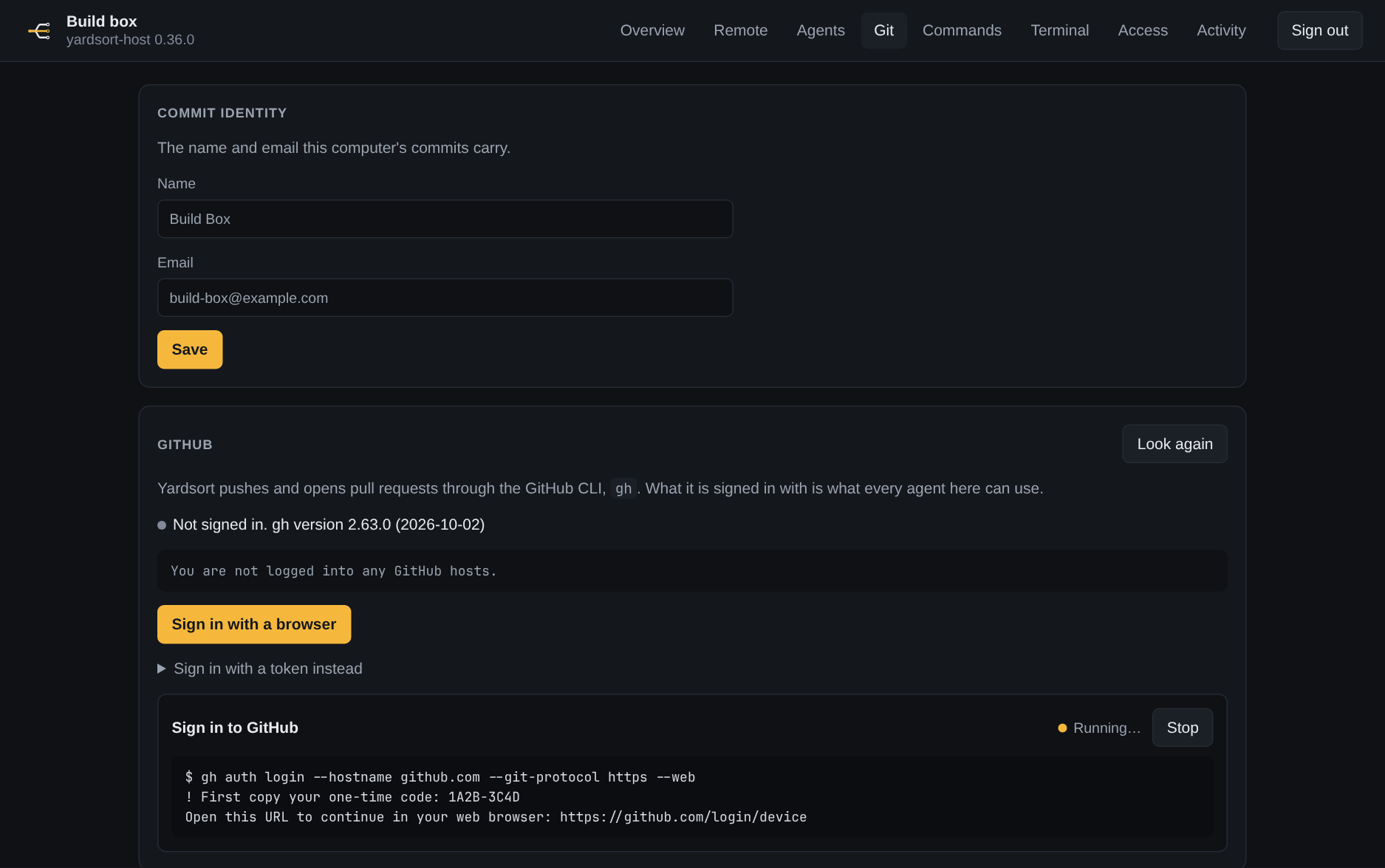
- Commit identity: the name and email that computer's commits carry.
- GitHub: whether the GitHub CLI is signed in, in its own words.
Sign in with a browser shows a one-time code and an address: open the address in any
browser and type the code, and nothing has to open on the server. Sign in with a token
hands that computer less than your whole account, as
Git and GitHub describes; the token goes straight to
ghand is kept byghalone. Sign out here signsghout; the token is still good at GitHub until you delete it there. - Repositories: give a repository's address and Clone clones it with that computer's own
Git sign-in and adds it as a project. It goes into
~/Projects, or the folderprojects_dirnames.
Commands
Run a command runs a line as that computer's shell would, from the home folder, as the user the host runs as, and shows what it prints as it runs. Stop ends it, and everything it started.
Nothing is on a command's input. One that asks a question gets no answer and fails, so pass
-y, or whatever the command has for that: sudo -n apt-get install -y ripgrep, not
sudo apt-get install ripgrep. For one that must ask, use the Terminal.
A command is not you at a terminal. yardsort-host pair, yardsort-host dashboard,
yardsort-host account export and account delete, and the sync and memory commands that only a person may run
are refused to a command the dashboard ran, and to anything that command starts.
Jobs lists what has been run since the host last started, an agent's install and a GitHub sign-in included, each with its output. They are kept in memory: restarting the host forgets them, and stops any still running. That each was run, and how it ended, stays in Activity.
Terminal
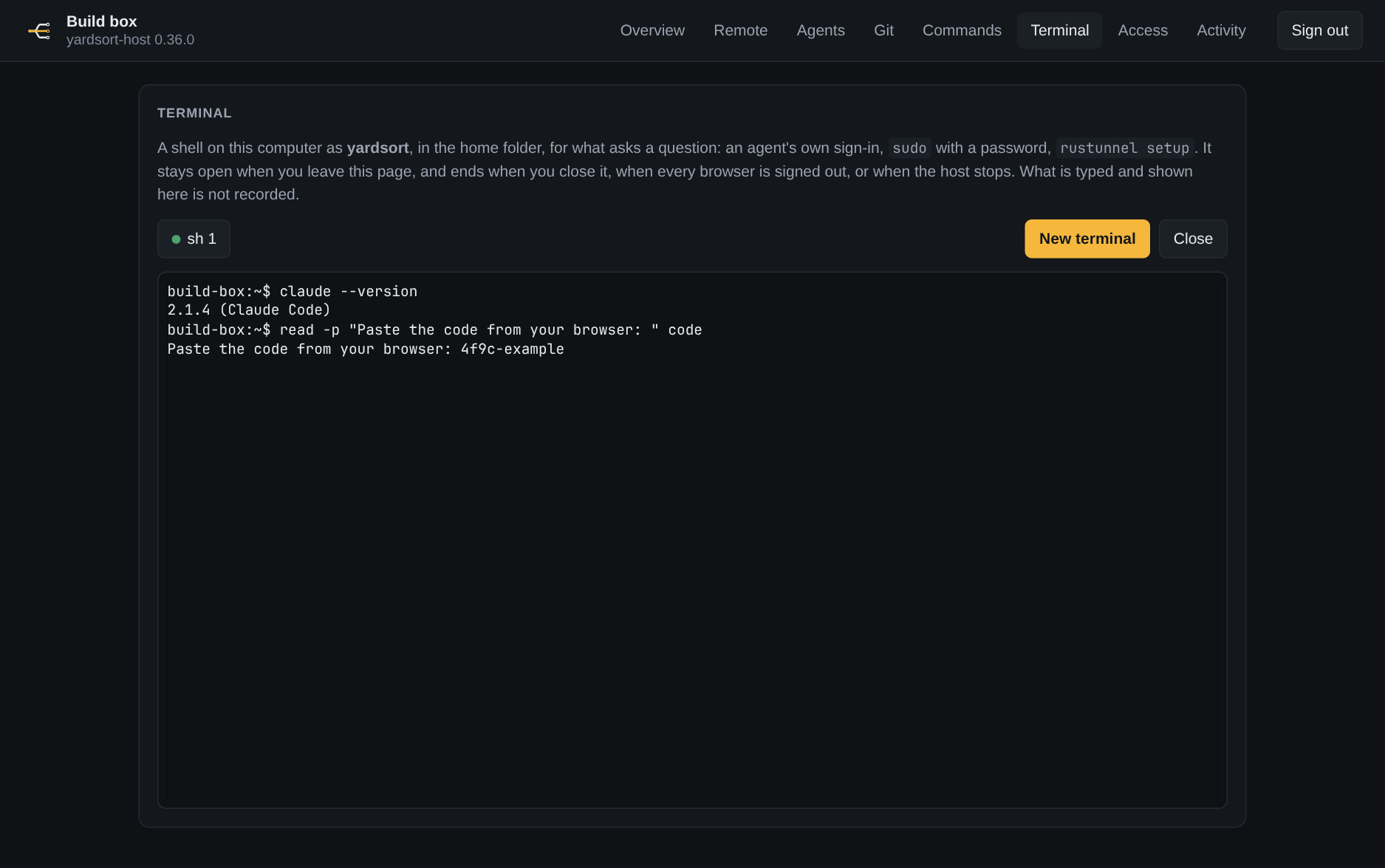
A shell on that computer, in the page: your own login shell, as the user the host runs as, in
the home folder. It is for what a command cannot do because it asks a question: an agent's own
sign-in, sudo with a password, rustunnel setup.
- New terminal opens one, and Close ends it and what runs in it. Up to four are open at once, each on its own tab above the terminal.
- It stays open when you leave the page, or close the browser: come back and it shows what it printed meanwhile, the newest megabyte of it. Any signed-in browser sees the same terminals.
- It ends when you close it, when every browser is signed out, and when the host stops. Unlike an agent's terminal in Yardsort, it does not outlast a restart of the host.
- Closing is a hang-up, and then an end. The shell and what it is running are hung up on, as
when a terminal's window is closed, and a second and a half later whatever is left of the
shell and of the program in the foreground is ended, so one that ignores a hang-up does not
stay behind. What you put in the background to outlive the terminal (
nohup,setsid,tmux) does outlive it, as it would an SSH login. When the host itself stops there is only the hang-up. - Nothing typed or shown in it is recorded. Activity says only that one was opened, and when it ended.
It is the dashboard's terminal, not one of your own: yardsort-host pair and
yardsort-host dashboard typed into it are refused, as they are in Commands. Pair on the
Remote tab.
Activity
What was done through the dashboard, the newest first: each sign-in and each one refused, each command and how it ended, each terminal opened, a change to the tunnel or to Git's name, a sign-in to a server or out of it from the page, each pairing code shown and each device let in or turned away there. The last 500 are kept, across restarts.
- It never holds what a command printed, a sign-in code, a pairing code or a GitHub token.
- A command is recorded as you typed it, so a secret typed into a command line is in it, as it is in a shell's history. Nothing typed into the Terminal is.
- It is a record for you, not a lock. Anyone signed in has a shell, and can delete the file.
Access
The dashboard's addresses, its tunnel, and how many browsers are signed in. Sign every browser out signs out this one too, voids the links not yet used, and closes every terminal open in the page.
A tunnel
A rustunnel tunnel gives the dashboard an https:// address that needs
no SSH. The host runs rustunnel's client, which reaches out to a tunnel server; nothing new
listens on that computer. rustunnel is the one tunnel the dashboard works with: an address from
another tunnel, or from a reverse proxy of your own, is refused as not this dashboard's.
Not yet run through a real tunnel. This part was built against rustunnel's documented client and tested with a stand-in for it. If the real one behaves otherwise, the dashboard says what the client said, under Access.
Read this before turning one on:
- Anyone who has the address can reach the sign-in page. Only a sign-in link from that computer lets them further.
- The tunnel's server can read everything that passes through it: what the page shows, what you type into it, and the cookie that keeps you signed in. The connection is encrypted as far as that server, not end to end. Use a tunnel server you trust with a shell on that computer, or one of your own.
It needs the rustunnel client installed for the user that runs the host, with its token:
rustunnel setup # asks for a region and your token; keeps them in ~/.rustunnel/config.yml
Yardsort keeps no token of its own. Then, at a terminal of your own on that computer:
yardsort-host dashboard tunnel on --subdomain build-box
yardsort-host dashboard            # shows the tunnel's address once it is up, and a link through it
yardsort-host dashboard tunnel off
--subdomain asks for a name of your choosing; without one the server picks one, new each time
the tunnel starts. --region is auto, eu, us or ap, and --server names a rustunnel
server of your own as host:port; without them, what rustunnel setup chose is used. Turning a
tunnel on is refused to anything but a person at a terminal, as a sign-in link is. Turning it
off never is.
The same settings are on the page, under Access, for a browser that is already signed in, and in the app that is where they are. The page asks before giving the dashboard a public address, and before changing a tunnel you are using to reach it.
The tunnel is kept up while the host runs, and comes back by itself after a lost connection. If
the client fails, for a wrong token say, Access and yardsort-host dashboard say why in the
client's own words, and it is tried again at longer and longer waits, up to five minutes. Through
the tunnel the dashboard answers over HTTPS only.
Turning it off
yardsort-host dashboard off        # and `on` again, at a terminal of your own
yardsort-host dashboard sign-out   # sign every browser out, and leave it on
off stops serving it at once, ends its tunnel, and keeps it off when the host next starts. In
the app, untick Serve the host dashboard. Either writes it to
settings.toml, which you can also edit while the host is stopped:
[dashboard]
enabled = false      # leave it out for each program's own default
port = 28680         # another port, if you would rather

[dashboard.tunnel]
enabled = true
subdomain = "build-box"
region = "eu"
server = "tunnel.example.com:4040"
In a container
The dashboard is served inside the container, on the container's own 127.0.0.1, which a
published port does not reach, so there it is opened through a tunnel. The full image
(yardsort-host-full) carries the rustunnel client for that; the slim one does not. Give the
container your rustunnel token, and turn the tunnel on from a terminal in it:
docker run -d --name yardsort-host -e RUSTUNNEL_TOKEN=<your token> … ghcr.io/joaoh82/yardsort-host-full
docker exec -it yardsort-host yardsort-host dashboard tunnel on --subdomain build-box
docker exec -it yardsort-host yardsort-host dashboard     # the address, and a sign-in link
-it matters: only a person at a terminal may open the dashboard up. A token kept with
rustunnel setup works too, in the home volume. This has not been tried against a real tunnel
yet.
If something is wrong
- "That code is not one this computer gave…" The link was used already, is more than ten minutes old, or every browser was signed out since. Ask for another.
- The port is taken. The dashboard takes the next free one of the ten from 28680, and
yardsort-host statusand the app's Settings say which. If all ten are taken, the host runs without it and says so when it starts: set anotherport. - The page says "This computer is not answering." The host stopped, or the forward or the tunnel dropped. It keeps trying, and carries on when the host is back; a browser stays signed in across a restart.
- The tunnel is "not up". The line says why, in the client's own words when it gave any. No
rustunnelon that user'sPATH: install it from rustunnel.com. No token, or a wrong one:rustunnel setup, which the dashboard's own Terminal can run. When the host runs as a service, the client is found on thePATHthat user's login shell has, as agents are. - "Signing in to the dashboard needs a person at a terminal", or "… is refused from a
terminal Yardsort started", or "… is refused to a command or a terminal the dashboard
ran". You ran
yardsort-host dashboardfrom a script, an agent's terminal, or the dashboard's own Commands or Terminal. Run it in an SSH login of your own. Turning the dashboard on and opening a tunnel are refused the same way, each named for what was asked. On a computer that is not Linux it says it needs Linux, where the host can check who asks. - "Pairing is refused to a command or a terminal the dashboard ran… Or pair from the
dashboard's Remote tab."
yardsort-host pairwas typed into the page. Use the Remote tab's Pair a device instead. - "This computer is signed in already, as …" under Remote: sign it out first, from the
page or with
yardsort-host sign-out, to sign in to another server. - "No device is asking now. Show a code again." The code lapsed, or the device's request went, before you answered. Nothing was let in.
- "Signed out for now, but … could be neither written nor deleted" The profile's
dashboardfolder cannot be changed, so the sign-out holds only until the host restarts. Fix the folder's owner or the full disk, or delete the file it names.
Where things are
| What | Where |
|---|---|
| Who is signed in | dashboard/sessions.json in the profile, by a hash of each session, never its key |
| Its settings | [dashboard] in settings.toml |
| The tunnel's sign-in | rustunnel's own: ~/.rustunnel/config.yml, or RUSTUNNEL_TOKEN |
| What was done | dashboard/activity.json in the profile: the last 500 things, never their output |
| What a job printed | Nowhere: jobs and their output are kept in memory, and go when the host stops |
| A terminal's screen | Nowhere: in memory, the newest megabyte, until the terminal ends |
How it was decided, and what is left open: the design record.