
Workspaces
A workspace is one line of work inside a project: a git branch, checked out in its own folder (a git worktree), with the terminals running in it. Separate folders keep each task's file changes apart. Agents started in the same workspace share its files, and changes on different branches can still conflict when you merge them.
Workspaces are plain git. Everything Yardsort does you can inspect with git worktree list and
git branch, and nothing stops you using those folders from any other tool.
Starting one: the composer
Press + on a project row, or Ctrl+Shift+N / ⌘N for the project you are in.
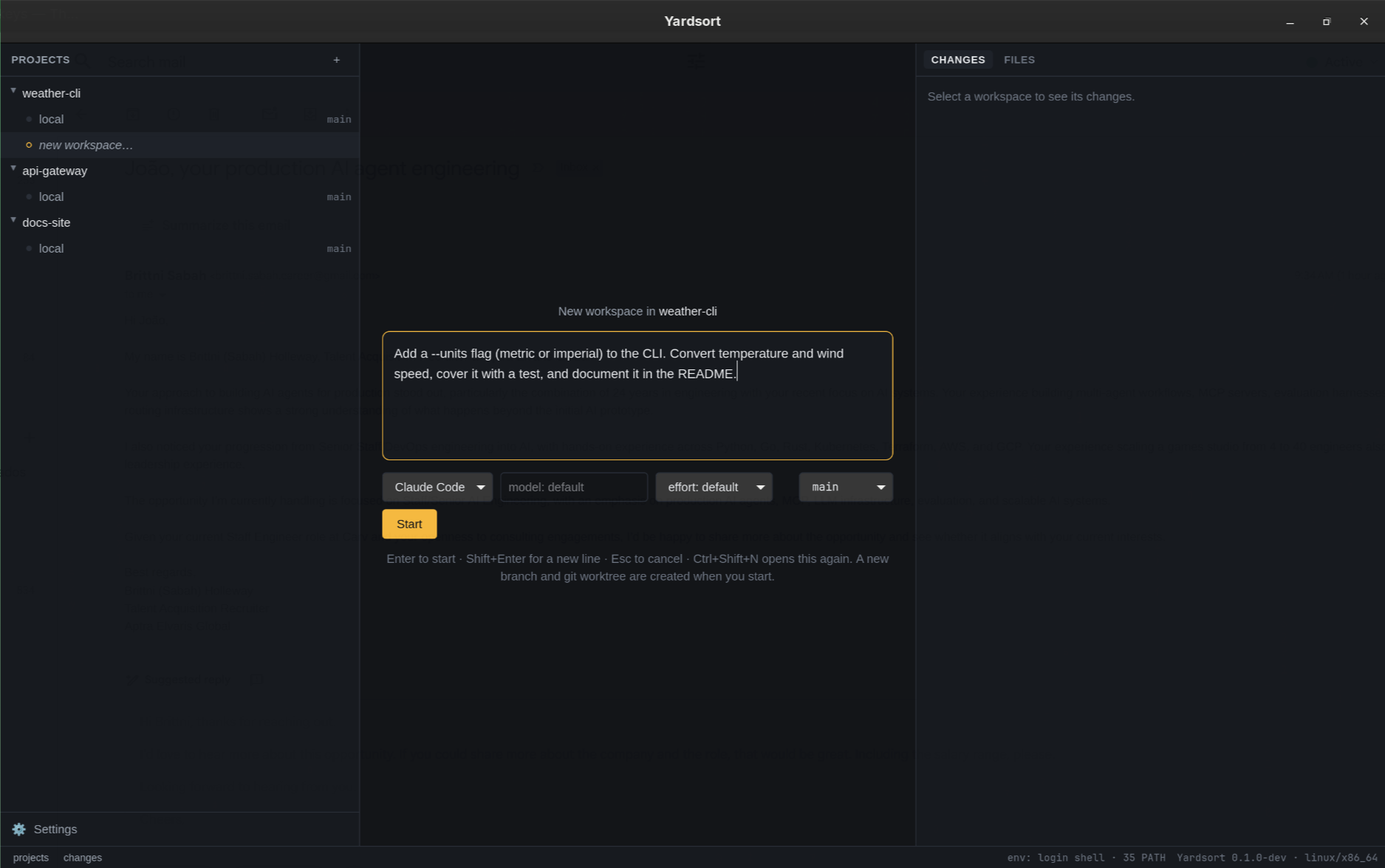
| Field | What it does |
|---|---|
| Message | The agent's first prompt. Enter starts, Shift+Enter makes a new line. Leave it empty to just open the agent. Drop a file here to insert its path — see below. After Hand off… it starts as what Yardsort recorded about the workspace — see handing work to another agent. After Fork into new workspace… it starts empty, and the record goes after it — see Fork. |
| Harness | Which agent to run. The list comes from settings. |
| Model | Free text with suggestions. Empty means "let the agent use its default" — no flag is passed at all. |
| Effort | Offered only for agents that have the concept. |
| Branch | Under New branch from, pick the branch to start from. Under Open existing branch, pick a branch to check out in a workspace as it is — no new branch is made. |
Under the pickers, Import worktrees… opens the same dialog as the project menu, for worktrees that already exist — see Worktrees made elsewhere.
When the project shares its memory, a line under the pickers says its approved entries go after your message — or, while nothing is approved yet, that the agent will be asked to propose some — Show reads what is added, and unticking leaves it out of this one launch. Your message stays the task on record.
Started in a workspace that already has another conversation, in a project that shares conversations, another line says the agent will be told it can read them — as background context for Claude Code and Codex, otherwise after your message — with Show for the note and what it reads, and a box to leave it out of this launch. See what agents can read of each other.
Under the pickers, the composer also shows your history with the agent you picked, across your projects — kept 3 of 5, or too few to say yet — from the outcomes you have recorded. It is shown, never used to choose for you.
Your last choices are remembered per project. With Assist switched on, a line under the pickers may offer a harness and an effort for what you are typing; Use applies it, and ignoring it does nothing.
Drop a file on the composer to put its path in the message, at the cursor, so the agent starts already pointed at it. Drop several and each path is added, separated by spaces. The composer is outlined while the file is over it. The path is written as plain text in the prompt, and one that contains a space is quoted. The same gesture on a terminal pastes the path into a program that is already running, quoted for the shell.
Nothing is created until you press Start —
cancelling (Esc) leaves no trace.
On Start, Yardsort:
- names the workspace from your message (
Add a --units flag…→add-units-flag), making it unique if needed; - runs
git worktree addwith a new branch,ys/add-units-flagby default; - starts the agent there with your message.
Naming looks for an explicit task in the message, including after introductory background:
I've been looking at the settings screen. Could you please add dark mode? becomes
add-dark-mode. It skips fenced code and common request lead-ins, then keeps up to four words
and 32 characters. This is local text extraction, not an AI summary; unrecognized wording falls
back to the opening words. Empty or unusable messages get a railway station name. Names are
chosen when the workspace is created; later messages do not rename it.
If preparation or the agent launch fails, the worktree and its branch are kept, so script output and copied files remain available. The error names its folder. Fix the problem and open the workspace to start an agent, or delete it through the workspace menu if it is no longer needed.
From a pull request
Start workspace on a pull request in the Pull requests view opens this same composer with the pull request's branch already chosen under Open existing branch. The agent, the message and Start are yours as usual, and nothing is created until you press it. The line under the box says when the branch comes from a fork — Yardsort will not push it — and when a branch you already had is behind the pull request. See Start a workspace from a pull request.
From a task
Delegate on a task in the Tasks view opens this same composer with the message written from the task — its title, description and latest comments, marked as text other people wrote. A line above the box says which task, and to read the message before you start. The workspace is named after the task rather than the message, and remembers it: its row shows the task's key until it has a pull request. See Handing a task to an agent.
Where the folders go
~/yardsort/<project>/<workspace> by default. Change the folder and the ys/ branch prefix in
Settings → Workspaces. Changing them affects new workspaces only.
Files git does not track
A fresh worktree contains what is committed — so .env files, node_modules and other ignored
or untracked things are not there by default. Configure Files to copy and a setup command
in Project settings to prepare each new or restored worktree
automatically, or install dependencies and copy files yourself in a shell tab.
Worktrees made elsewhere
Not every worktree of a repository is a workspace. Yardsort shows the ones it made, and picks up
on its own only worktrees under its own folder (~/yardsort by default, see
Settings → Workspaces) — which is how a project's workspaces come back
when the project is removed and added again. A worktree anywhere else — made by hand, by another
tool, or by a script — is left alone until you ask for it.
To bring those in, choose Import worktrees… from the project menu or from the composer. The dialog lists every worktree git knows about that is not a workspace, with its branch and its path, all ticked; untick what you do not want and press Import. Nothing is moved or changed: the folder stays where it is, on the branch it has, and Yardsort just learns about it. An imported workspace is named after its folder; rename it if you like.
To go the other way, Forget… in the workspace menu takes a workspace out of Yardsort without touching its folder or its branch.
The workspace menu
Hover a workspace and press ⋯, or right-click it.
Run workflow… and Request code review…
Start a workflow in this workspace: Run workflow… asks which, Request code
review… goes straight to the built-in review. Both open the same dialog, which asks the
workflow's inputs and shows the pull request it will use. The local workspace has them too,
from its right-click menu.
Run smoke test…
Run one of the worktree's smoke tests here: the dialog lists them with their readiness, asks the chosen test's inputs, and shows its steps in words before Run, which is also the approval a new or changed file needs. The run opens as a tab beside the terminals. The dialog lists the workspace's recent runs too, to open any again.
Fork into new workspace…
Start new work from where this workspace stands, without sharing its folder: a new workspace, on a new branch made from this one's, in its own worktree. It is for the moment you are partway through a feature and want the next one to build on it — where a handoff would put the next agent in the same worktree, on the same branch.
It opens the composer, headed Fork … into a new workspace, with Branch already on this workspace's branch. The message starts empty: say what to do next. Your message is the new workspace's task, and names it. After it, the agent gets what Yardsort recorded about the workspace you forked — the same record a handoff is written from, worded for a new branch: what that workspace was asked, its commits (now in your history), its changed files, what its agents did, and the project's memory when the project shares it. Show what goes with it reads that part; it is not edited there.
A fork starts from the commits. Files changed and not committed stay in the workspace you forked, and the composer says how many: commit them there first to bring them along. The new branch's base is the branch you forked from, so its Changes list and its pull request are measured against that branch, not the project's default. The workspace you forked is left as it is, and its agents carry on.
The record goes only with a branch started from the one you forked, since only then are its commits there. Pick anything else under Branch — or fork a workspace whose branch has gone since — and the composer says so in amber: it starts an ordinary new workspace, with nothing of the forked one's record and the project's memory offered as usual.
From a terminal, ys workspace fork <workspace> "<prompt>" does the same, and --print shows the
message without making anything — see the CLI guide.
The item is greyed out for a workspace that is not on a branch (a detached checkout, or a branch
with no commits yet). The local workspace has it too, when its checkout is on a branch.
Rename…
Changes the label only. The folder and the branch keep their names on purpose: agents file their conversations by folder, so moving it would orphan them — and would pull the rug from under anything running there.
Archive…
For work you are done with for now. The folder is removed from disk; the branch, its commits and the session history are kept. The workspace moves to a collapsed archived (n) group at the bottom of its project.
Restore workspace, from the archived entry's menu, checks the branch out again at the same path — which is what makes its old conversations resumable.
Forget…
For a worktree that is not Yardsort's to remove — one you imported, or one another tool owns. The workspace leaves the list and nothing on disk is touched: the folder and the branch stay exactly as they are. Terminals running in it are closed.
Its saved conversations are kept by default, so if the worktree is ever imported again they are back with it. Tick Also delete its saved conversations in the dialog to drop them instead.
Delete workspace…
Removes the folder and forgets the workspace. The branch is always kept — deleting a workspace never throws away commits. Delete the branch yourself with git if you want it gone.
ys workspace delete <name> does the same thing from a terminal, which is how a harness can
remove a workspace it is finished with. See the command line.
How did it go?
After an archive or a delete, the bottom of the sidebar asks how the attempt went: Kept, Partly or Discarded. One optional click; × leaves it for later. Deleting keeps the attempt's record, so it can be judged afterwards in Outcomes… — see Outcomes.
Uncommitted work is protected
Archiving and deleting both remove a folder, and uncommitted changes live only there. If there
are any, Yardsort stops and asks again, saying plainly that the work will be lost for good.
Nothing is destroyed on the first click. On the command line the same refusal is the default:
ys workspace delete removes nothing until --force is passed.
When a workspace's folder disappears
If the folder is deleted behind Yardsort's back, the workspace is marked missing. Its menu offers Restore from its branch (check it out again in the same place) or Delete.
When the branch goes too
Removing a worktree and its branch with git — git worktree remove followed by git branch -D,
say — leaves a workspace with nothing behind it: no folder to open, no branch to restore from. It
is marked gone, and its menu offers only Rename… and Delete workspace….
Yardsort notices this the next time it reads the project — at startup, and whenever its window comes back into focus — and asks whether to delete the workspace from the app as well. Saying Delete workspace forgets the workspace and its session history; nothing on disk is touched, because there is nothing left there. Saying Keep leaves the entry alone and is remembered, so you are not asked about the same workspace twice.
Workspace previews
Hover or keyboard-focus a workspace row for its name, branch and pull request details, and the task it was started from when there is one. The PR preview includes review status, line counts and expandable checks; see Commits & pull requests.
The harness pill counts open harness tabs, including finished tabs whose output is still open; shell tabs are excluded. Hover or focus the pill to see each harness and whether it is working, waiting, finished or failed. Select a harness in the preview to open that workspace and its existing terminal. Escape dismisses the preview; Arrow Down from the focused pill enters it.