
Projects
A project is a git repository on your computer that Yardsort knows about. Projects live in the left panel; everything else hangs off them.
Finding a project
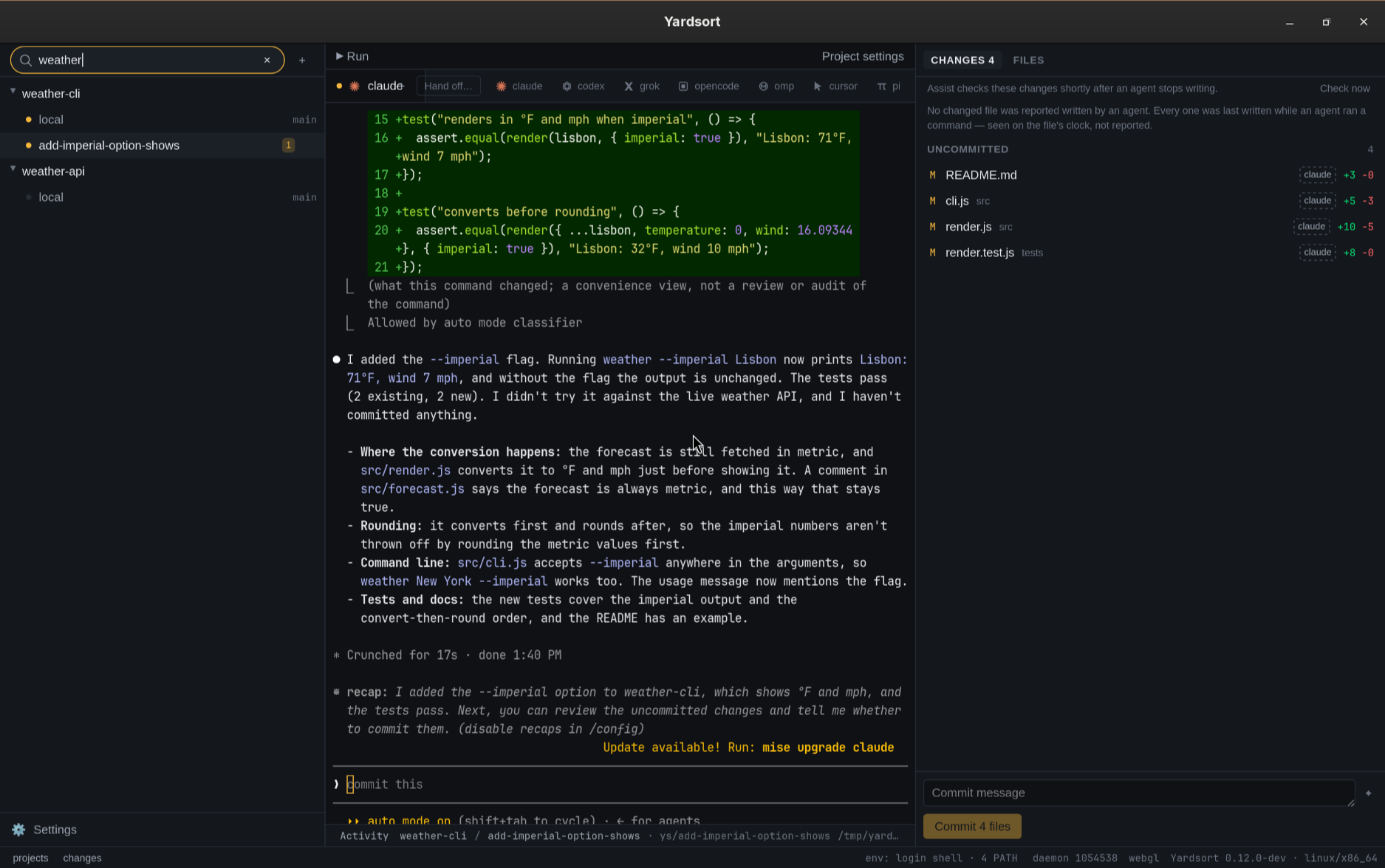
Click the search icon next to Projects to open Filter projects…. Type part of a project's name to filter the list as you type; matching ignores case and surrounding spaces. Matching projects keep their workspace rows and collapsed state. Filtering does not change your selected workspace or stop its terminals. The project containing the selected workspace always stays visible, even if its name does not match — including when you add a project or select a workspace through a shortcut while filtering.
Click × to clear the filter and show all projects again. Press Escape in the field to clear it and return to the Projects heading. If nothing matches, the panel says so. The + button remains available while searching. When the field is empty, × closes it.
Adding a project
Press + next to Projects.
Open a folder
Ctrl+Shift+O / ⌘O goes straight here. Pick a folder and:
| The folder is… | What happens |
|---|---|
| a git repository | It is added. |
inside a repository (say repo/packages/web) | The repository's root is added instead, and a note tells you so. |
| not a repository | Yardsort asks whether to initialise git there. Saying yes runs git init and makes an empty first commit — your files are not changed. Saying no adds nothing. |
| already one of your projects | Nothing is duplicated; the existing project is selected. |
Yardsort needs a repository because every workspace is a git worktree, and it needs at least one commit because a worktree has to branch from something.
Create a new project
Give it a name and a location. Yardsort creates <location>/<name>, runs git init
and makes an empty first commit. The location is remembered for next time and shown as a line;
Change… opens the field again.
The name becomes a folder name, so characters that are illegal on some system (/ \ : * ? " < > |)
are refused, and an existing folder is never touched. If any step fails, the half-made folder is
removed again.
Clone a repository
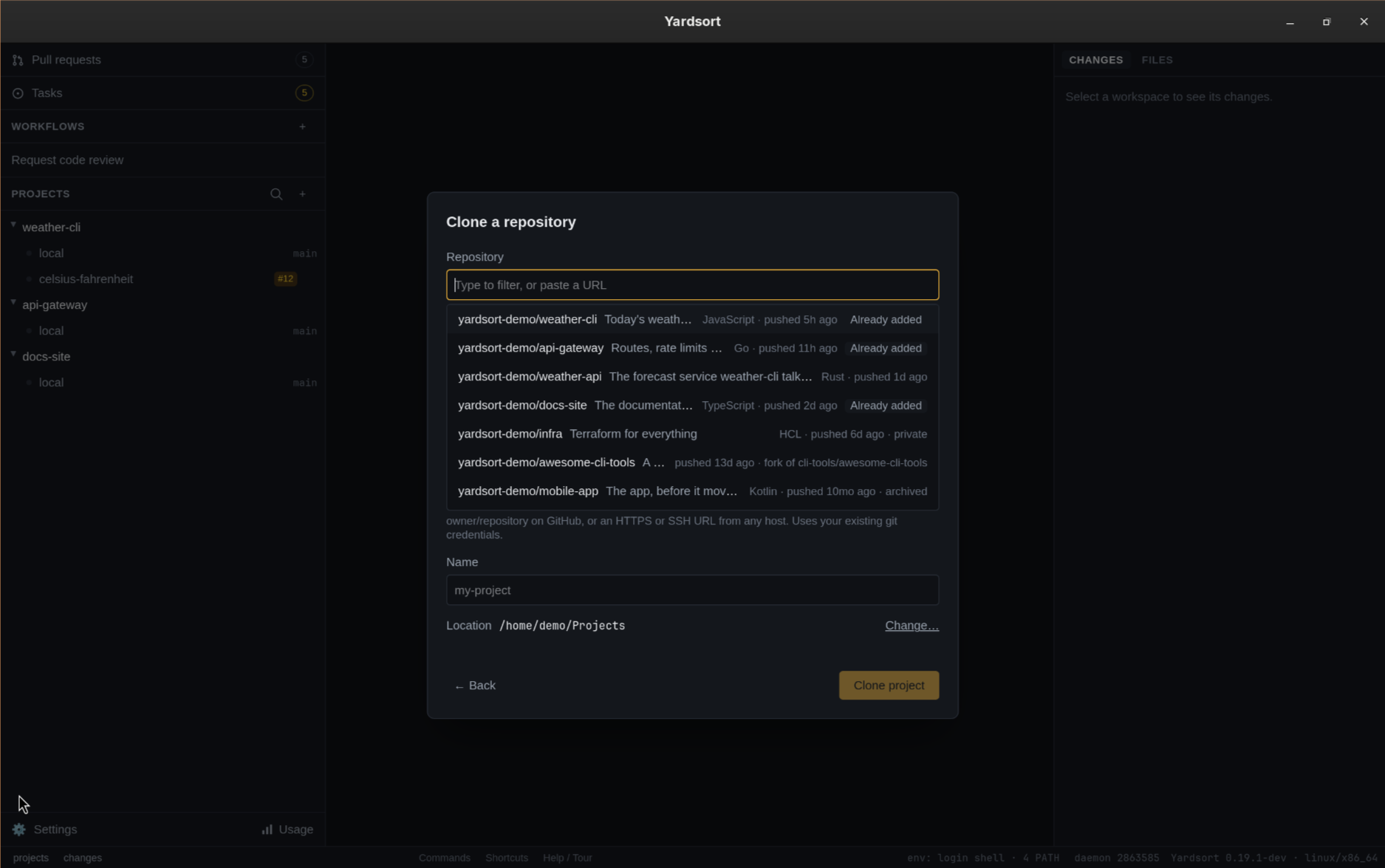
Choose Clone a repository. Under the Repository field is a list of the repositories your GitHub account owns or collaborates on, most recently pushed first, each with its language, when it was last pushed to, and whether it is private, archived or a fork of something.
 The list comes from the GitHub CLI, logged in as you;
Yardsort holds no credential of its own.
The list comes from the GitHub CLI, logged in as you;
Yardsort holds no credential of its own.
Type to narrow the list, by name or by description. ↑ and ↓ move through it, Enter picks the highlighted row, and so does a click. Picking a repository fills in the field and the Name. The last row, once you have typed three characters, is Search GitHub for “…” — it asks GitHub for repositories named like that, anywhere: your organisations', other people's public ones, up to the twenty GitHub ranks first. Nothing is sent until you press it. Your repositories brings your own list back.
The list holds the 200 you pushed to most recently and says when you have more; search finds the rest. Organisation repositories are not in the list — an account in a large organisation can reach tens of thousands — and are found by searching.
A repository that is already one of your projects says Already added. Picking it turns the
button into Go to project, which selects that project instead of cloning it twice. The match
is by the project's remotes, not by its folder's name, so a clone of a fork stands for the fork
and for its parent. The list is read when the dialog opens and kept while Yardsort runs; it is
read again after a project is added or removed, and after you log in to gh.
You can also paste a clone URL, with or without a list, and it need not be GitHub's: an HTTPS
URL (https://gitlab.com/group/subgroup/repository), an ssh:// URL, or git's
git@host:path form from GitLab, Bitbucket, Gitea, Forgejo or a host of your own, with as many
path segments as that forge uses. owner/repository on its own means GitHub, and GitHub links
such as github.com/owner/repository, www.github.com/…, and http://github.com/… are
normalized to HTTPS. Anything else is refused: a folder on disk, git://, a plain http:// to
another host, a host without its scheme, a password in the URL. Name starts with the
repository's name, without .git, and follows the field until you edit the name yourself.
Start from a link… lands here too, with the repository filled in, when the issue or pull request you pasted belongs to a repository that is not a project yet; the item opens once the clone is done.
A project from another host works like any other — commits, pushes and Open merge request included — but its issues and pull requests are not listed: the Pull requests and Tasks views are for GitHub, and say so per project.
Location is where the last clone or new project went, shown as a line; press Change… to choose another folder with Browse… or by typing it in. The first time, with nothing remembered yet, the field is shown directly.
Clone project downloads the repository into <location>/<name>, adds it to the sidebar,
and selects its local workspace if the dialog is still open. Its history and origin
remote are preserved; the location is remembered for next time. Existing folders, including
empty ones, are refused. A repository picked from the list is cloned over HTTPS or SSH as your
gh config get git_protocol says; a pasted URL is cloned as pasted. A fork picked from the list
gets its parent as a second remote, upstream, and fetches it — the dialog says so under the
field. That is where a pull request from the fork is measured against, and it is the
repository the Tasks and Pull requests views answer for in that
project, since gh resolves a clone of a fork to its parent. If git cannot add or fetch the
remote, the clone is still added, without it.
Cloning uses your installed git and its existing credentials. For private repositories, set up git access before cloning. While git runs, choose Run in background, press Escape, or click outside the dialog to keep using your terminals. Closing the dialog does not cancel the clone. The sidebar shows Cloning name… until it finishes. A background completion adds the project and shows a notice without switching away from your current workspace.
Errors appear in the dialog, or in the sidebar when it is closed. Correct the URL, credentials or destination and retry (open the clone dialog again if you closed it). If a failed clone leaves files behind, the error names the folder; inspect it or choose another name before retrying. Yardsort does not recursively delete that folder.
Without gh, or with nobody logged in to it, there is no list: the dialog says which, and the
field still takes a URL. If reading the list stops short — a page GitHub did not answer — what
arrived is shown with the reason and Retry.
The local workspace
Every project has a local entry, always first. It is your repository's own checkout — not a worktree — and the branch checked out there is shown next to it. It cannot be renamed, archived or deleted.
Clicking it selects it, and the middle panel asks what to open rather than picking for you, because both answers are reasonable in your own checkout:
- Open Terminal — a shell in the project root, on the branch you have out.
- Open Composer — the composer, but running the agent in this checkout: no new branch, no new worktree. Everything else is the same — harness, model, effort, your first message — and the conversation is recorded so it can be resumed and forked like any other.
It only asks when there is nothing running there and no earlier conversation to come back to; otherwise clicking brings what is already there into view. That is the same rule a worktree workspace follows, except a worktree opens a shell instead of asking.
An agent in local has no isolation: it edits the branch you have checked out, like you would.
That is the point of it — for a quick fix, or work you intend to commit where you are — but it is
why workspaces exist, and why they are the default.
The branch label follows reality: switch branches in another tool and it updates the next time Yardsort's window gets focus.
The project menu
Hover a project and press ⋯, or right-click it:
- Project settings… — files to copy into new worktrees, a setup command, a run/dev-server command, and the smoke tests' environment and rules. See Project automation and Smoke tests.
- Memory… — lessons about the project for its agents: what you write, what agents propose for you to approve, and whether they are given it. A count on the project's row says when proposals wait. See Memory.
- Outcomes… — every attempt in the project with what became of it, and each agent's history. See Outcomes.
- New workspace — same as the + on the row. See Workspaces.
- Import worktrees… — make workspaces of worktrees that already exist in the repository, made by hand or by another tool. See Worktrees made elsewhere.
- Reveal in file manager
- Move up / Move down — the order is remembered.
- Remove from Yardsort… — takes the project off the list and closes its terminals. Nothing on disk is deleted: the folder, its branches and its worktrees all stay. By default Yardsort also keeps its own record — the workspaces, imported ones included, and their saved conversations — so adding the same folder again brings everything back as it was. Tick Also delete its workspaces and their saved conversations in the dialog to start over instead; the next time the folder is added, only worktrees under Yardsort's own folder are picked up (see Worktrees made elsewhere).
Click a project's arrow to collapse it. Collapsed projects, your selection and the panel sizes are all restored the next time you start Yardsort.
When a folder goes missing
If a project's folder is moved, deleted or on a drive that is not mounted, the project is shown struck through and marked missing. It is not removed — it comes back by itself when the folder does. If it is gone for good, remove the project from its menu.
Project automation
Open Project settings… from the project menu, or Project settings above a workspace's terminal tabs. These settings are stored locally in Yardsort's database, per project; checking out a repository cannot enable a command. Removing a project with its history kept also keeps these settings. Deleting its record clears them.
Files to copy takes one relative file path per line, for example .env or
config/local.json. Files come from the project's original checkout, including ignored files.
Use / separators on all platforms. Directories, symlinks, absolute paths, parent traversal and
.git paths are rejected. Existing destination files are never overwritten; a missing source
or conflicting destination stops preparation and leaves the worktree available for inspection.
Setup executable and Setup arguments run after copying, in the new worktree, before the
agent starts. Enter one argument per line without shell quotes; blank lines are ignored. For
example, use executable bun and argument install. For a script, use bash with
scripts/setup.sh, or pwsh with -File and scripts/setup.ps1 on separate lines. Arguments
are passed directly; shell operators and environment-variable expansion are not interpreted.
Leave the executable empty to disable it.
Preparation also runs when opening an existing branch in a new worktree, or restoring a worktree
created by Yardsort. Imported and adopted worktrees do not run preparation, including on restore.
It does not run on local or merely selecting an existing workspace.
The CLI's ys workspace new, including --no-agent, uses the same preparation.
Setup uses the resolved launch environment, with YARDSORT_PROJECT set to the original checkout
and YARDSORT_WORKSPACE to the new worktree. It is noninteractive and has a ten-minute limit.
Output is saved as yardsort-setup-….log in the worktree’s private Git directory, outside the
checkout. It cannot be staged by git add -A and does not make the worktree dirty. Git removes
the log when the worktree is archived or deleted; inspect or save it first if needed. To locate
that directory from the worktree, run git rev-parse --absolute-git-dir. Logs may contain secrets,
so inspect them before sharing. If preparation fails, the agent is not started and the error
names the retained worktree. For an unsuccessful setup process, it also gives the log’s full
path. Open a shell in the worktree to fix the problem and rerun your setup command manually;
read the log using that full path, or locate it with git rev-parse --absolute-git-dir.
A timeout stops the setup process; check for any child processes it started before retrying.
If the agent fails to launch after preparation, the prepared worktree is kept too.
Run executable and Run arguments configure ▶ Run above the terminal tabs. For example,
use bun with run and dev on separate lines. Run starts in the selected workspace, including
local, in a regular terminal tab: output remains visible and the process keeps running when
you switch workspaces or close the window. Press Run again to focus an existing running server;
after it exits, Run starts a new one. Use the terminal's Ctrl+C to stop it, or close its tab.
If no command is configured, Run opens Project settings. Each workspace runs its own server;
configure ports in your project if multiple servers would otherwise use the same port.
The dialog's Smoke tests part holds the project's test environment — the names and values
its smoke tests read as {{ env.NAME }}, kept here and never
in the repository — with Ask every time and how long to keep runs.